Showing posts with label X-Tricks. Show all posts

Friday, July 25, 2014

Stop receiving notifications/requests for games such as Candy Crush, Farme Vill and others?

Leave a Comment
This mean you’ve likely gotten invitation to play a game or connect with a app that You’re. Then the user can choose to stop receiving notification from that apps or games. I have found the way to block requests on a Mobile or computer device. 
STEP 1:- Login to your Facebook Account.
STEP 2:- Open the Apps request center. Click here.
STEP 3:- Now see app you want to block Facebook game requests for and click the “X.” See below image I am block Texas HoldEm Poker game request.


STEP 4:- Then click on the Block Texas HoldEm Poker game. 


Now click on the Confirm Button.

Another Option for Block games notification Requests:-
STEP 1:- Login your Facebook account and click on the Setting option.

 STEP 2:- Then Click on Apps from left sidebar.


STEP 3:- Now find apps and click on the Edit option.
  
STEP 4:- Then click on the Never option. (See images for more details)

For Mobile Users follow these simple steps:-
STEP 1:- Open your Facebook apps on your mobile.
STEP 2:- Click on the more option are show in bottom. And click on the Setting option.
STEP 3:- Now UN Check the Application Request.
Wow you done it@
@@Thanks###. Enjoy the facebook trick in difftrick.
Read More

Thursday, April 10, 2014

This Might Be Our First Look At iPhone 6 (Leaked Photos)

Leave a Comment
We've heard from a number of sources that Apple is planning two larger iPhones for release in 2014 – one with a 4.7-inch display and another packing a decidedly-extensive 5.5-inch panel. But after seeing just how carried away folks got with the so-called iPhone 5 in the run-up to what eventually amounted to the iPhone 4s, it’s always good to have some
physical evidence – however vague – to corroborate the incessant claims. Shots of a new rear-shell leak, along with an alleged iPhone 6 prototype, have just leaked into the wild, and from the looks of it, the iPhone 6 will carry a similar design language which we’ve seen in the iPad Air.


We’ve seen numerous concepts depicting what an iPhone might look like if it borrowed certain characteristics from its larger brother, but there hasn’t ever been any evidence or even a suggestion that such a move could happen for real. Sure, the iPad Air, having ripped-off pretty much every physical feature of the iPad mini, has benefited greatly as a result, but by the same token, the iPhone 5s – like those released before it – has also drawn praise for its overall design.

There’s no telling whether this leak is anything close to genuine, and even if there was some kind of verification, it would still be subject to change and modification given that we’re not expecting new iPhone hardware for several months. But, if we were to momentarily take these leaked images as the real deal, then it may appear that Apple is in search of uniformity across its iOS device line.

Going so much larger – some reports have even noted that the largest iPhone could boast a display as large as 5.7 inches – could prompt Apple to rethink the design, and given that this size of device would push it into the phablet territory, it stands to reason that Apple may instead consider taking a more iPad-like approach in terms of the build.


The oft-overlooked matter of the iPod touch could also be a factor with this leak, though, and since this shell bears a striking resemblance to that of the latest-generation model, perhaps we’re instead looking at the rear housing of the forgotten member of the iOS device family, which usually gets a display bump and generous update alongside its cellular cousin.


But again, if you look at the iPhone 6 ‘prototype’ photos, it’s clear that the next-gen device will also carry a Touch ID sensor (for obvious reasons), something which we believe won’t make its way through to the iPod touch, just yet.

Thoughts?

Update x1: The above photos has now been proved to be fake.

Read More

Photos Of iPhone 6 Leaks Out From Foxconn Factory

Leave a Comment
Even though the iPhone 6 isn’t expected to arrive until September time, there’s been a notable spike in the frequency of new details relating to the Cupertino’s next big thing. From what we’ve heard, ‘big’ is the operative word here, with a 4.7-inch model apparently allied to a larger configuration packing a 5.5-inch display, and thanks to a leaked image via Chinese social network Weibo, we may have our first legitimate look at the device’s rear shell.


The grainy snaps supposedly originate from a Foxconn factory manufacturing the device, and although the shots aren’t of as bad quality as leaks of this kind usually are, it’s hard to glean any real perspective on how much bigger the ‘iPhone 6′ is compared with the current form factor.


One thing immediately noticeable about the handset, however, is the fact that it retains the same ‘long’ design that the iPhone has carried since the iPhone 5, which, if this is a legitimate sighting, ties in nicely with the notion of an edge-to-edge display.


Even though Apple’s iPhone 5s has is considered an elegantly-designed phone, it’s fair to say that the general aesthetics haven’t changed a great deal since the iPhone 4 back in 2010, but with Tim Cook’s company apparently stepping things up in terms of display real estate, it’s looking evermore likely that the design will be subject to similar attention.

With so many rumors having flown about, it’s been very difficult to pin down any kind of consensus, but in line with some reports, this iPhone 6 leak sees the device borrow much of its finish from the iPod touch / iPad Air, with a decidedly curvaceous rear shell.

Whether this means that the iPhone 6 will also be notably thinner than the iPhone 5s – it’s unlikely to be lighter to due to the increase in size – is anybody’s guess, but it’s also important not to completely disregard the idea that this may well be an ‘iPhone 6c’ at work, rather than the next flagship.


Just to add to all of the confusion, there has been much suggestion that the iPhone 5c – which looked dead in the water after many had written it off as a flop – will be succeeded by a larger, thinner device, and this could well be it. Sure, it looks aluminum, but it’s not written anywhere that a lower-end device must be made of plastic, and so right now, the possibilities as to what this leak represents are seemingly endless.

Presuming, just for a moment, that this was a 4.7-inch / 5.5-inch iPhone 6 – based upon the rear shell only – do you think Apple has taken a step forward in terms of design?

(Source: Weibo)


Read More

Saturday, April 5, 2014

How To Play Puzzle Game on Video Using VLC Media Player ??

Leave a Comment
VLC media player is a free and open source media player written by VideoLan project.It has huge number of users and personally this is the best media player for free of cost.

Today I come with new VLC trick, Play Puzzle game on your video.

Follow some simple steps:

STEP 1: Open the VLC Media Player. You don’t have VLC then download it from Here.

STEP 2: And Navigate the Tools and click on the Effects and Filters. (Or press Ctrl+E).


STEP 3: Now, new window is open then click on the Video Effects tags.


STEP 4: And Click on the Geometry Tags Button.


STEP 5: Now, Check the Puzzle Game and Set Rows and Columns then also Check it Black Slot. (It further moving the Shapes are require one blank box.)


STEP 6: Now Play any Video and Play Puzzle Game.


@@@Enjoy the Tricks. I am back with new VLC Tricks @@@


Read More

Wednesday, April 2, 2014

How To Make Artistic Sketch Videos Using VLC Media Player ??

Leave a Comment
When you are watching a video on your computer with the VLC player, you can change the appearance of the video with various video effects. VLC is a free video application made by VideoLAN. Gradient Effect on VLC Media player could show Video as if its a sketch drawn by an Artist on Canvas.

STEP 1: Open the VLC Media Player. You don’t have VLC to download to Click Here.

STEP 2: And Navigate the Tools and click on the Effects and Filters. (Or press Ctrl+E)


STEP 3: Now, new window is open then click on the Video Effects tags.


STEP 4: And Click on the Colors Tags Button.


STEP 5: Now check on the Gradient tools.(See image for more details)


STEP 6: You done it.. Play any Video and see@@@


Comment for any Queries@@ And Enjoy this trick@@

Thank You and Keep Visiting Difftrick
Read More

Tuesday, March 25, 2014

How to Record Video from Webcam using VLC Media Player ??

Leave a Comment
Hello..Friend I am very impressed by VLC media player. VLC is very small and open source media player but it contains more features and applications. 

You want to record the Video from your laptop webcam VLC media player. Just followed the below simple steps:-

STEP 1: Open the VLC Media Player. You don’t have VLC to download to CLICK HERE!!!

STEP 2: Now, Click on View and Check the Advanced Controls Properties. For Recording Tools are add on the Screen.


After add the Advanced Control then go to main task. 

STEP 3: And Navigate the Media and click on the Open Capture Device. (Or press Ctrl+C)


STEP 4: Now, new window is open then Select your Web cam and Audio driver. (See image for more details)

And Click on the Play Button.


STEP 5: After Start the video and Click on the Record Button.

Once you’ve done just again press the Record button again.


Your recorded clip will be saved in Videos folder in library by default.


Read More

Sunday, March 23, 2014

How To Convert Video and Audio File using VLC Media Player ??

Leave a Comment
Convert Video and Audio File using VLC Media Player ?? One of the great features of VLC Media Player, which is seldom found in many software media players, is the ability to extract audio from video. VLC Media Player has good support for encoding to different audio formats like MP3 and you can convert from quite a wide selection of video formats; which includes: AVI, WMV, 3GP, DIVX, FLV, MOV, ASF, and many more. 
However, the interface in VLC Media Player doesn't make it that obvious where to begin or what to do in order to get the audio data out of your videos. To help you quickly create audio files from videos, this article will guide you through the steps necessary to open a video file that is stored on your computer and then encode it to an MP3 file. This tutorial uses the Windows version of VLC Media Player, but you can still follow it if using the program on another operating system.

Simply follow the below simple Steps.

STEP 1: Open the VLC Media Player. You don’t have VLC to download to click here.

STEP 2: Navigate the Media and click on the Convert/Save. (Or press Ctrl+R)


STEP 3: Now, new window is open then click on the Add Button. And select the Video/Audio file you want to convert it. 


STEP 4: You have to see the file path in the file selection box. Then click on the Convert/Save Button. 


STEP 5: Now new Window will open. 


STEP 6: Now, see the profile which size are you want that select it. After click on the Browse Button and set the destination path. 


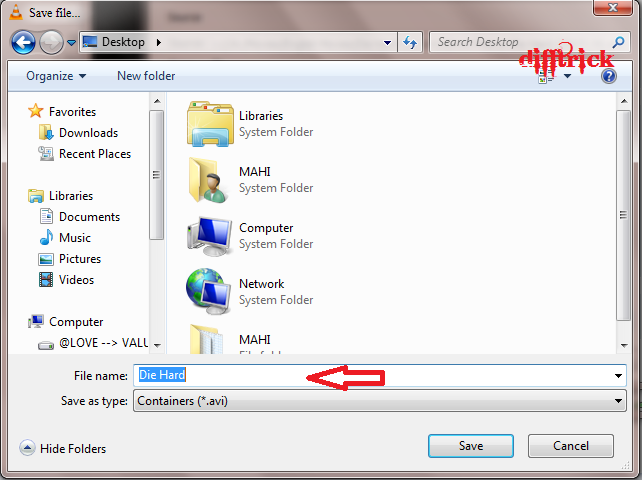
STEP 7: Type the File name that you want to covert it. Then click on the Save button. 


STEP 8: After all steps are complete, and then click on the Start button. 


STEP 9: See your converting is Starting…… 


I hope you don’t use any type of Converter. Enjoy the tricks on the Difftrick...


Read More

How To Clean All Temporary Files, Cookies,Temporary Internet Files using Notepad ??

Leave a Comment
It is obvious that the faster processor and more than RAM you buy, the faster computer will run. However on top of that are some simple tips that can be implemented on your computer to unlock more speed on it? Most of user is using Cleaner software but it is now free. You have to clear the all temporary files, temporary internet file clean it. No software is required. I have created the code for batch file code it is very simple and make your Computer FASTER.


STEP 1: Open the Notepad.

------------------: CLEANCER Code:-----------------

@echo off

echo Webhog Cleaner

echo waiting

del /f /s /q %systemdrive%\*.tmp

del /f /s /q %systemdrive%\*._mp

del /f /s /q %systemdrive%\*.log

del /f /s /q %systemdrive%\*.gid

del /f /s /q %systemdrive%\*.chk

del /f /s /q %systemdrive%\*.old

del /f /s /q %systemdrive%\recycled\*.*

del /f /s /q %windir%\*.bak

del /f /s /q %windir%\prefetch\*.*

rd /s /q %windir%\temp & md %windir%\temp

del /f /q %userprofile%\cookies\*.*

del /f /q %userprofile%\recent\*.*

del /f /s /q ?%userprofile%\Local Settings\Temporary Internet Files\*.*?

del /f /s /q ?%userprofile%\Local Settings\Temp\*.*?

del /f /s /q ?%userprofile%\recent\*.*?

echo complete!

echo. & pause

STEP 2: Select the Cleaner code and Copy Paste in Notepad.

STEP 3: Save the File and it extension is .bat. (Save the file is Cleaner .bat)

STEP 4: After saving the batch file is created. Now you have to click the Cleancer.bat file.

STEP 5: Now process is automatically start.


This process is complete take one are two minutes. Wait for complete the process don’t click cancel.

After the Completed process, then make your computer FASTER.

I hope you like these tricks. Next time I back with new batch tricks.
Read More