Showing posts with label VLC. Show all posts

Saturday, April 5, 2014

How To Play Puzzle Game on Video Using VLC Media Player ??

Leave a Comment
VLC media player is a free and open source media player written by VideoLan project.It has huge number of users and personally this is the best media player for free of cost.

Today I come with new VLC trick, Play Puzzle game on your video.

Follow some simple steps:

STEP 1: Open the VLC Media Player. You don’t have VLC then download it from Here.

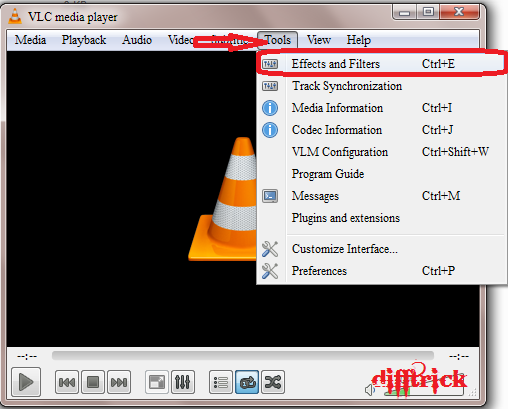
STEP 2: And Navigate the Tools and click on the Effects and Filters. (Or press Ctrl+E).


STEP 3: Now, new window is open then click on the Video Effects tags.


STEP 4: And Click on the Geometry Tags Button.


STEP 5: Now, Check the Puzzle Game and Set Rows and Columns then also Check it Black Slot. (It further moving the Shapes are require one blank box.)


STEP 6: Now Play any Video and Play Puzzle Game.


@@@Enjoy the Tricks. I am back with new VLC Tricks @@@


Read More

Wednesday, April 2, 2014

How To Make Artistic Sketch Videos Using VLC Media Player ??

Leave a Comment
When you are watching a video on your computer with the VLC player, you can change the appearance of the video with various video effects. VLC is a free video application made by VideoLAN. Gradient Effect on VLC Media player could show Video as if its a sketch drawn by an Artist on Canvas.

STEP 1: Open the VLC Media Player. You don’t have VLC to download to Click Here.

STEP 2: And Navigate the Tools and click on the Effects and Filters. (Or press Ctrl+E)


STEP 3: Now, new window is open then click on the Video Effects tags.


STEP 4: And Click on the Colors Tags Button.


STEP 5: Now check on the Gradient tools.(See image for more details)


STEP 6: You done it.. Play any Video and see@@@


Comment for any Queries@@ And Enjoy this trick@@

Thank You and Keep Visiting Difftrick
Read More

Tuesday, March 25, 2014

How to Record Video from Webcam using VLC Media Player ??

Leave a Comment
Hello..Friend I am very impressed by VLC media player. VLC is very small and open source media player but it contains more features and applications. 

You want to record the Video from your laptop webcam VLC media player. Just followed the below simple steps:-

STEP 1: Open the VLC Media Player. You don’t have VLC to download to CLICK HERE!!!

STEP 2: Now, Click on View and Check the Advanced Controls Properties. For Recording Tools are add on the Screen.


After add the Advanced Control then go to main task. 

STEP 3: And Navigate the Media and click on the Open Capture Device. (Or press Ctrl+C)


STEP 4: Now, new window is open then Select your Web cam and Audio driver. (See image for more details)

And Click on the Play Button.


STEP 5: After Start the video and Click on the Record Button.

Once you’ve done just again press the Record button again.


Your recorded clip will be saved in Videos folder in library by default.


Read More

Sunday, March 23, 2014

How To Convert Video and Audio File using VLC Media Player ??

Leave a Comment
Convert Video and Audio File using VLC Media Player ?? One of the great features of VLC Media Player, which is seldom found in many software media players, is the ability to extract audio from video. VLC Media Player has good support for encoding to different audio formats like MP3 and you can convert from quite a wide selection of video formats; which includes: AVI, WMV, 3GP, DIVX, FLV, MOV, ASF, and many more. 
However, the interface in VLC Media Player doesn't make it that obvious where to begin or what to do in order to get the audio data out of your videos. To help you quickly create audio files from videos, this article will guide you through the steps necessary to open a video file that is stored on your computer and then encode it to an MP3 file. This tutorial uses the Windows version of VLC Media Player, but you can still follow it if using the program on another operating system.

Simply follow the below simple Steps.

STEP 1: Open the VLC Media Player. You don’t have VLC to download to click here.

STEP 2: Navigate the Media and click on the Convert/Save. (Or press Ctrl+R)


STEP 3: Now, new window is open then click on the Add Button. And select the Video/Audio file you want to convert it. 


STEP 4: You have to see the file path in the file selection box. Then click on the Convert/Save Button. 


STEP 5: Now new Window will open. 


STEP 6: Now, see the profile which size are you want that select it. After click on the Browse Button and set the destination path. 


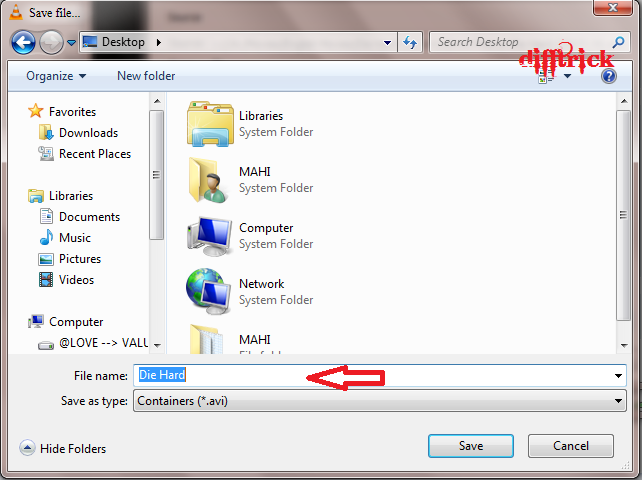
STEP 7: Type the File name that you want to covert it. Then click on the Save button. 


STEP 8: After all steps are complete, and then click on the Start button. 


STEP 9: See your converting is Starting…… 


I hope you don’t use any type of Converter. Enjoy the tricks on the Difftrick...


Read More

How To Watch YouTube Videos in VLC Media Player ??

Leave a Comment
Most of the people are watch the movies are videos in online from YouTube. But YouTube required the more data rates and more time to buffer it. Lets friend see the How to Watch YouTube Videos Internet video in VLC Media Player ??

STEP 1: Open the VLC Media Player. You don’t have VLC then download to from here.

STEP 2:
And Navigate the Media and click on the Open Network Stream. (Or press Ctrl+N)


STEP 3: Now, new window is open then click on the Network tags.


STEP 4: Now copy the video link from internet or YouTube.

Example: https://www.youtube.com/watch?v=R8G0gFzIpp8

STEP 5: Now paste the Click on the Network URL.


STEP 6:
Wow!!! You had done it... Watch the video and enjoy it.


Comment for any type of Queries. And I am early back with new VLC tricks.


Read More

Saturday, March 22, 2014

How To Add Image/Logo and Text in VLC Media Player ??

Leave a Comment
VLC is a free and open source cross-platform multimedia player and framework.

Let’s come to point, you are see some video inside in text writing and image also. In during presentation in video you have to add images/logo and text in your videos. You have to perform the follow some simple and easy steps. And sure you have done it.

STEP 1: Open the VLC Media Player. You don’t have VLC then download it from here.

STEP 2: And Navigate the Media and click on the Effects and Filters. (Or press Ctrl+E).


STEP 3: Now, new window is open then click on the Video Effects tags.


STEP 4: And Click on the Overlay Tags then see all properties.


STEP 5: Check on the Add logo and browse the image (.jpg, .png) then set the size in pixels you want to be display, after you want to Add Text in video the Check the Add text and type the name and fixed it position of Text. Then click to Close. (See image for more details).


STEP 6: You have done it. See the logo and text in video.


Comment for the new type of Queries or Question….Enjoy the Trick...


Read More

How To Record Desktop Video In Computer Using VLC Media Player ??

Leave a Comment
Today’s most popular media player is VLC. Because his open the all file of video extension file and it is simple to use. Now come back point today we discuses about how to Record your desktop activity using VLC media player. Plz follows the below steps.


STEP 1: Download the VLC Media Player and install it. Click here to download the VLC Media Player.

STEP 2: Now, Open the VLC Media Player and Click the Menu in the Top in Menu bar in left side. And open the OPEN CAPTURE DEVICE. (See in image for more details.)


STEP 3: Now, Choice the Desktop Device Selection.


STEP 4: And set the Desire frame rate capture value is 30.00 f/s frame rate. It is the actually size of recording the Video.


STEP 5: Now click the drop down tab nearby Play Button and Select the Convert. 


STEP 6: Now, New Window is open then you click the Setting Button. 

STEP 7: Click on the Video Code tabs and increase the Bit rate is 1504 kb/s.


STEP 8: Now, click on the Browse the Button. 


STEP 9: Select the Destination file and type the file name and click on the save button. 


STEP 10: Now, just click on the Start Button for start the video recording. 


STEP 11: Now, see the Timer your video recording is start. 


I hope you enjoy this VLC trick. Comment for any type of Queries.


Read More